
Extract, Split, or Merge? Choosing the Right PDF Tool for the Job
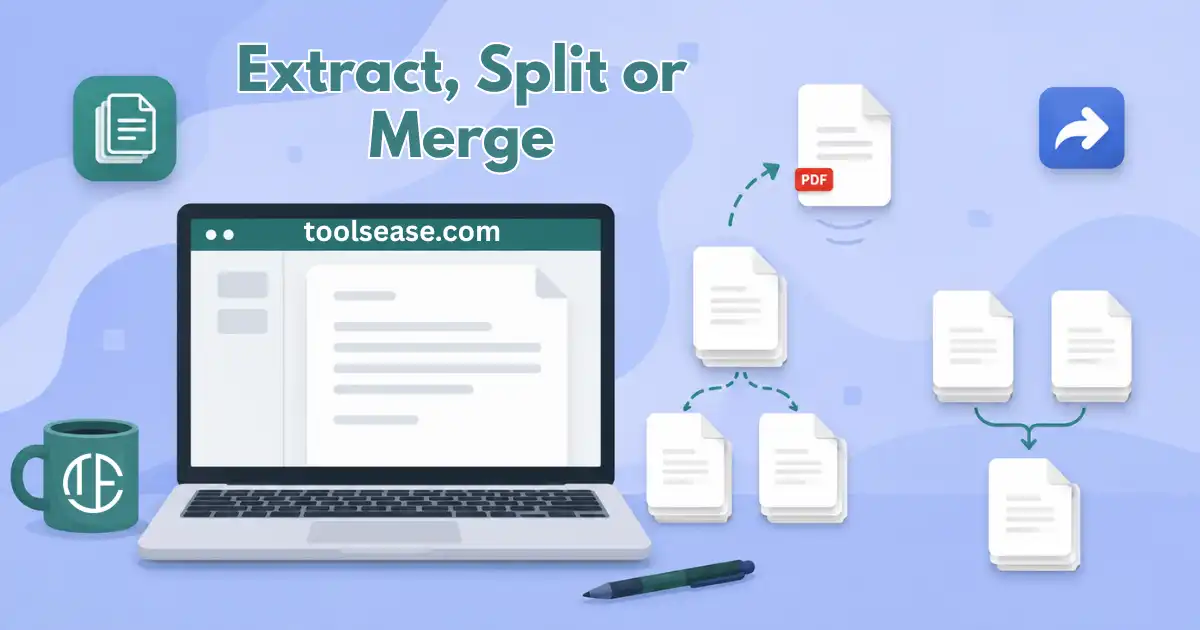
Say you've got a 40-page PDF and only need pages 12 through 15 for tomorrow's meeting. Or you've scanned a stack of receipts into one long file and need each one separate. Or you've got three signed contracts that need to become a single document before you send them off. These are three different problems, and three different tools solve them. People often reach for the wrong one first and end up frustrated with a result that isn't what they wanted.
Extracting: Pulling Specific Pages Out
Extraction is what you want when you need a handful of pages from a much longer document and don't care what happens to the rest. You pick the pages, either by number or by clicking their thumbnails, and you get back a new file containing exactly those pages. Nothing about the original changes.
Our PDF page extractor handles this in the browser: upload the file, select pages 12 to 15, download the result. Common cases are pulling a signed page out of a contract, grabbing one chapter from a report, or isolating a single invoice from a scanned batch.
Splitting: Breaking One File Into Many
Splitting looks similar to extraction but solves a different problem. Instead of pulling a few pages out and discarding the rest, splitting takes an entire document and breaks it into several complete files, usually one file per page or one per section.
This is the right tool when the whole document needs to become several separate ones. Say you scanned twelve invoices into a single 12-page PDF because that's how your scanner works. Splitting turns that one file into twelve individual PDFs, each ready to attach to its own email or upload to its own record. Our split PDF tool does this without losing formatting or image quality.
The quick way to tell extraction and splitting apart: extraction throws away everything you didn't select. Splitting keeps everything, just as separate files instead of one.
Merging: Combining Several Files Into One
Merging runs the other direction. You've got multiple PDFs and want them stitched into a single document, in whatever order you choose. This comes up constantly with contracts that arrive as separate signature pages, reports assembled from several people's sections, or scanned pages you want combined before archiving.
Our merge PDF tool lets you drag files into the order you want and combines them into one PDF, keeping the original quality of every page.
What About Deleting Pages?
There's a fourth, closely related job: removing specific pages from a document without extracting or splitting anything. If page 7 of a 20-page contract is a blank cover sheet you don't need in the final version, you don't want to extract the other 19 pages one at a time. You want to delete just that one. Our delete PDF pages tool is built for exactly that.
A Quick Way to Decide
- Need a few specific pages and don't care about the rest? Extract.
- Need one document turned into several separate files? Split.
- Need several documents combined into one? Merge.
- Need to remove a page or two but keep everything else in one file? Delete pages.
None of This Needs Installed Software
All four operations run entirely in the browser. There's nothing to download, no account required, and your file is removed from our servers once processing finishes. That matters more than it sounds: a lot of PDF editing software is built for much heavier tasks like redesigning layouts or editing text, and installing all of that just to grab four pages out of a report is a bad trade of your time for what you actually needed.
Key Takeaways
The short version, if you're skimming.
Frequently Asked Questions
Quick answers about this guide.
Try These Tools
Free tools related to this guide.
SEO Analyzer, Meta Tag Checker, or SERP Preview? What Each One Actually Tells You
Three different tools check three different things before you publish. Here's what an SEO analyzer, a meta tag checker and a SERP preview tool each actually show you.
What Is Meta Tag Analysis and Why It Matters for SEO
Your title tag and meta description are often the first thing people see in Google. Here's what meta tag analysis checks and how to fix the most common mistakes.